A cluttered desk equals a cluttered mind. If you are a software engineer, day trader, video editor, or anyone who relies on multiple screens to get work done, your workspace is the engine of your income. However, adding more screens and devices usually results in a chaotic mess of cables and zero physical desk space. Building the ultimate productivity command center is about maximizing your digital real estate while maintaining a minimalist, distraction-free physical environment. Here is exactly how to achieve the perfect workflow setup.
1. Reclaim Your Desk Space: Heavy Duty Monitor Arms
The biggest mistake in any multi-monitor setup is using the factory stands. Giant monitor bases eat up 30% to 40% of your usable desk depth, leaving you with no room for a notebook, tablet, or even your coffee. Upgrading to a heavy-duty ultrawide monitor arm completely changes the geometry of your workspace by making your massive screens “float” above the desk.
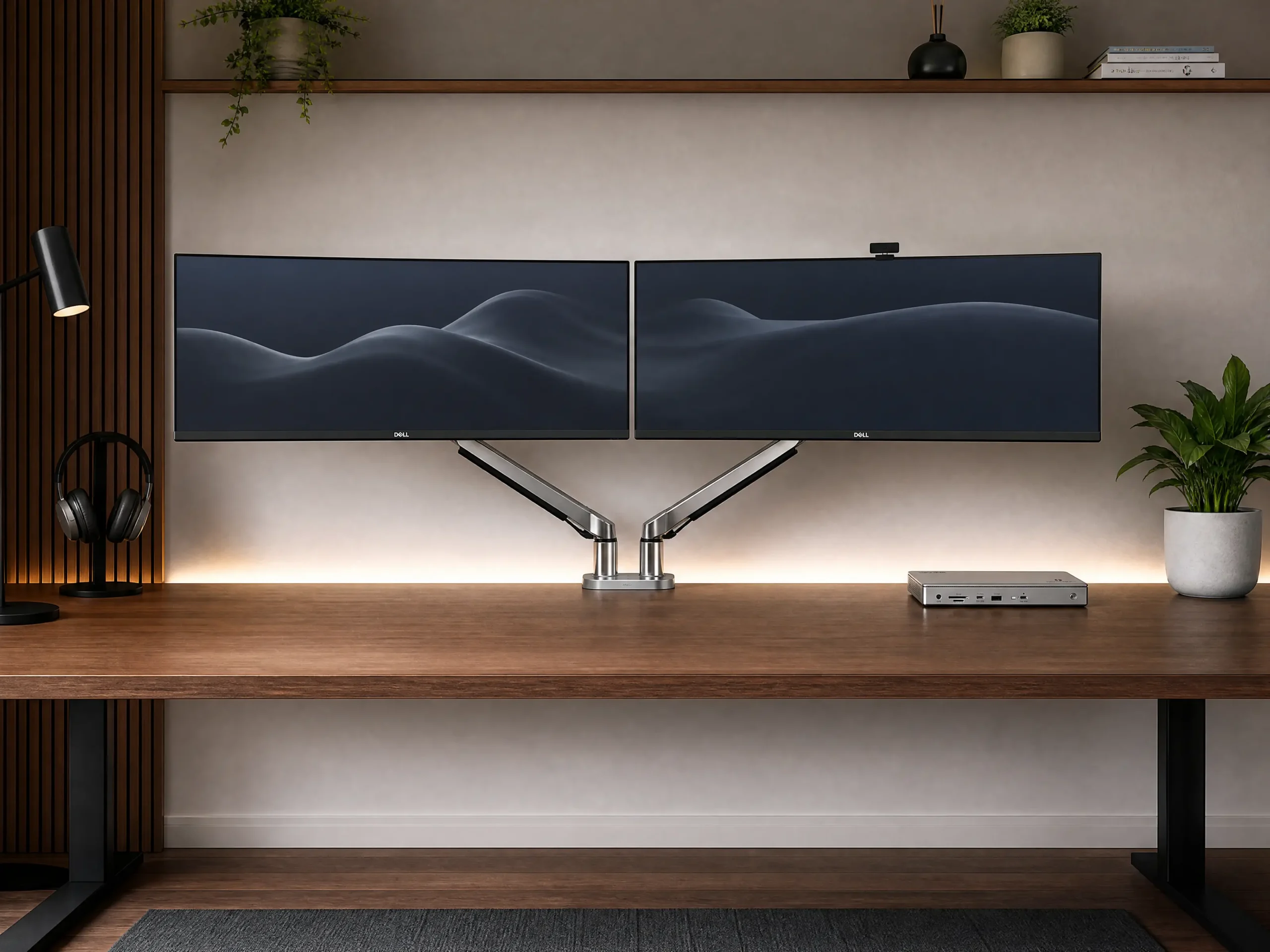
Not only does this instantly make your setup look incredibly clean and professional, but it also allows you to adjust the height and tilt on the fly. Proper ergonomic eye-level positioning prevents the dreaded “tech neck” after a 10-hour coding or editing session.
2. Eliminate Cable Hell: Thunderbolt 4 Docking Station
If you use a laptop as your main brain but dock it at home, plugging in a charger, two display cables, and multiple USB accessories every single day is a massive friction point. The secret weapon of every elite command center is a Thunderbolt 4 docking station. This is the ultimate “one-cable” solution.
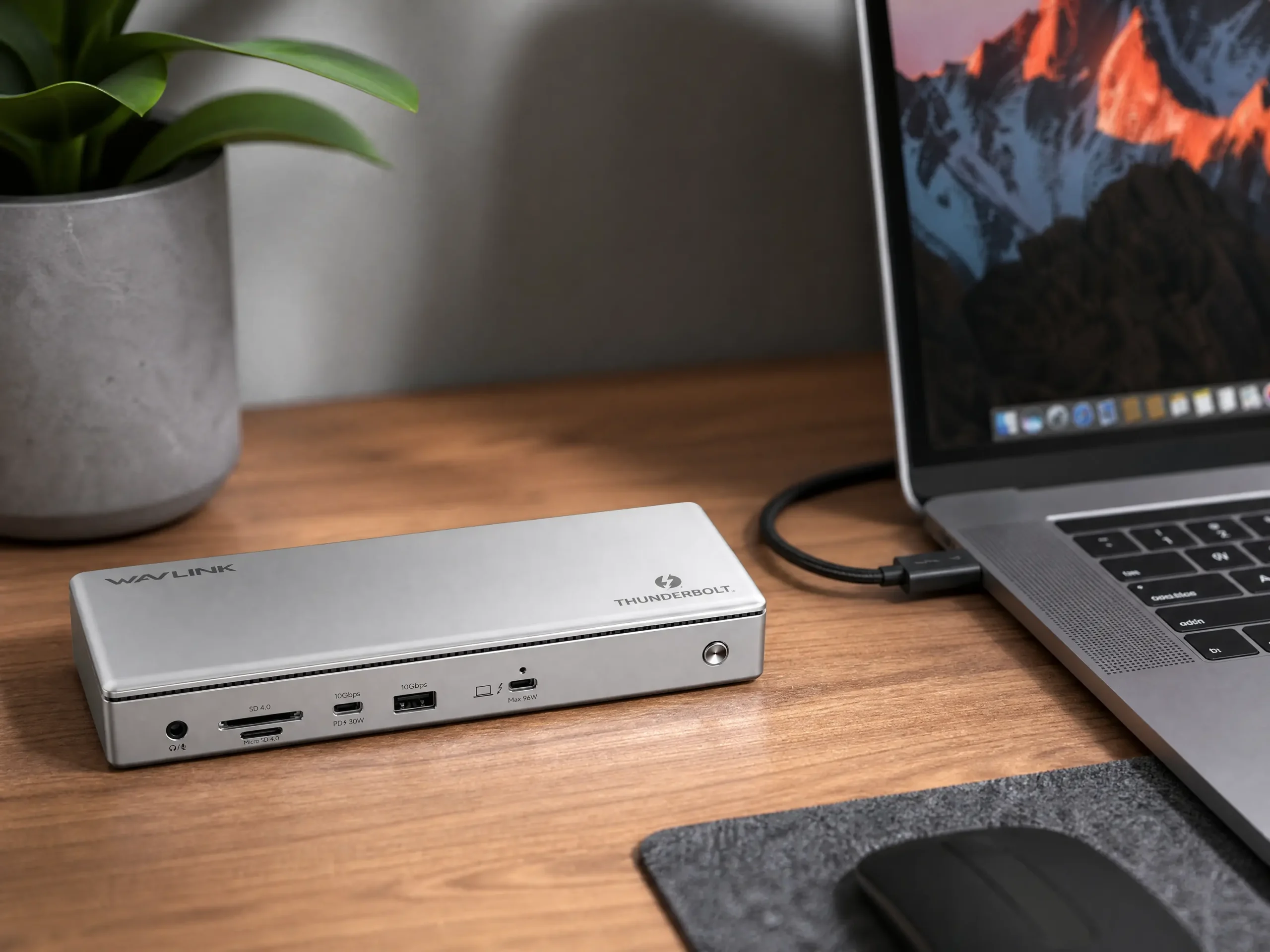
You tuck the dock under the desk or near the edge, plug all your peripherals and monitors into it, and run just one premium USB-C cable to your laptop. It charges your laptop, drives dual 4K displays at 60Hz without lag, and connects all your gear instantly. This is how you achieve that pristine, wireless look.
3. Supercharge Your Workflow: Ergonomic Productivity Mouse
Gaming mice are great for gaming, but terrible for productivity. When you are navigating massive spreadsheets, scrubbing through video timelines, or switching between code environments, you need hardware built for workflow speed. A premium ergonomic wireless productivity mouse is an absolute game-changer.
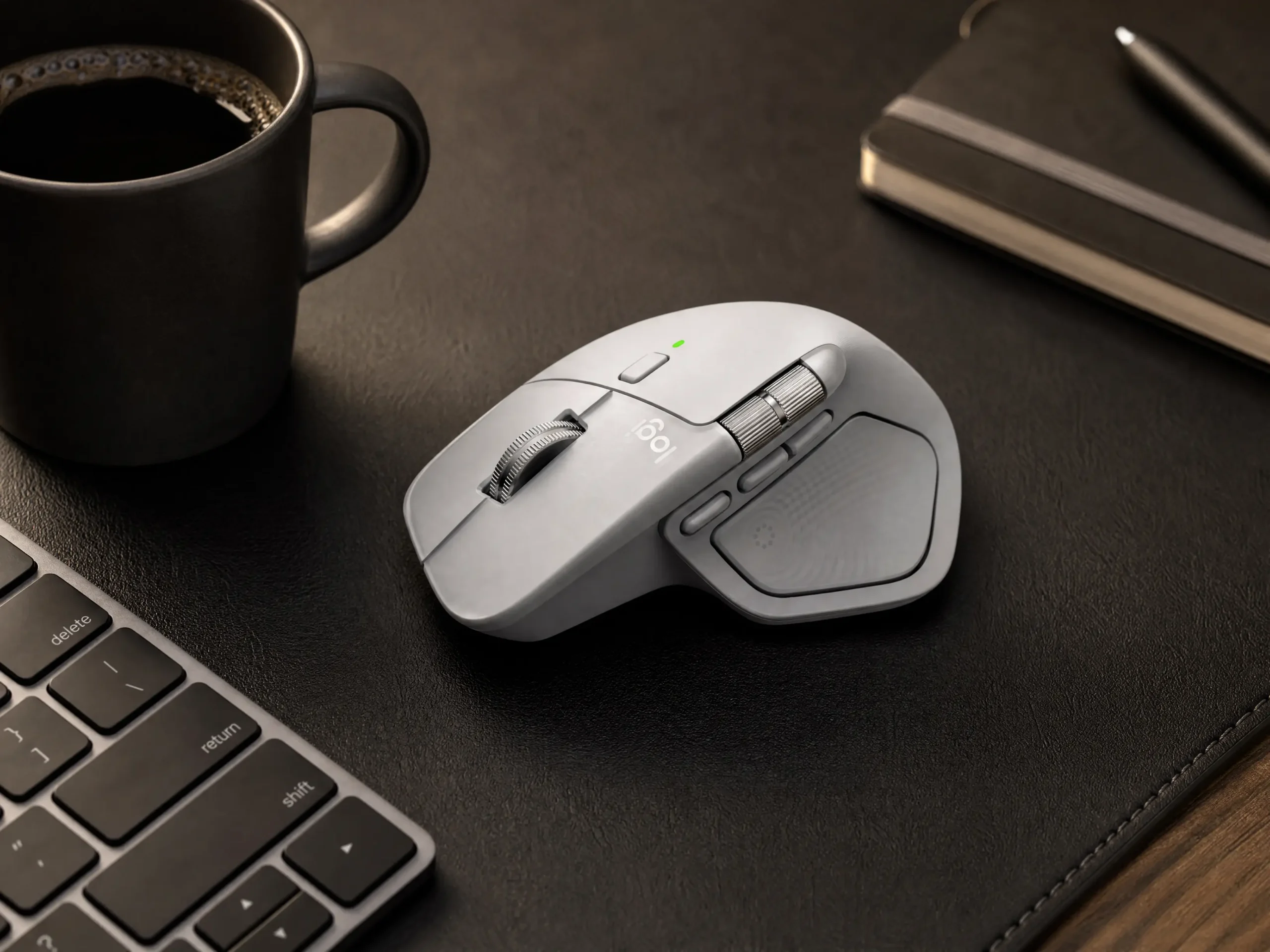
Features like a dedicated thumb scroll wheel for horizontal navigation, programmable gesture buttons, and an ergonomic slope that prevents carpal tunnel make a massive difference. Once you map your daily shortcuts to the mouse, your hand barely has to leave it, saving you countless micro-seconds that add up to hours of saved time every month.
Frequently Asked Questions
Why do I need a Thunderbolt 4 dock instead of a cheap USB-C hub?
Cheap USB-C hubs lack the bandwidth to handle multiple high-resolution displays and high-speed data transfer simultaneously, often resulting in flickering screens or laggy mouse movements. A Thunderbolt 4 dock provides a massive 40Gbps of bandwidth, ensuring dual 4K monitors run smoothly alongside gigabit ethernet and fast charging without any performance drops.
How does a clean command center setup actually improve my work?
Visual clutter competes for your brain’s attention, leading to faster cognitive fatigue. By using monitor arms and a docking station to hide cables, you eliminate visual distractions and maintain deep focus for longer periods. Additionally, sensory elements like premium sound can further lock you into the zone. If you really want to elevate your environment, consider pairing this setup with high-end audio—check out our guide on how to build an audiophile desk setup for ultimate sound quality.